INTRODUCTION
Every programming language consists of some basic elements which are required to make a program. The element required to construct a QBASIC program consists of a set of characters, keywords, constants, variables, operators and expressions.
1. CHARACTER SET
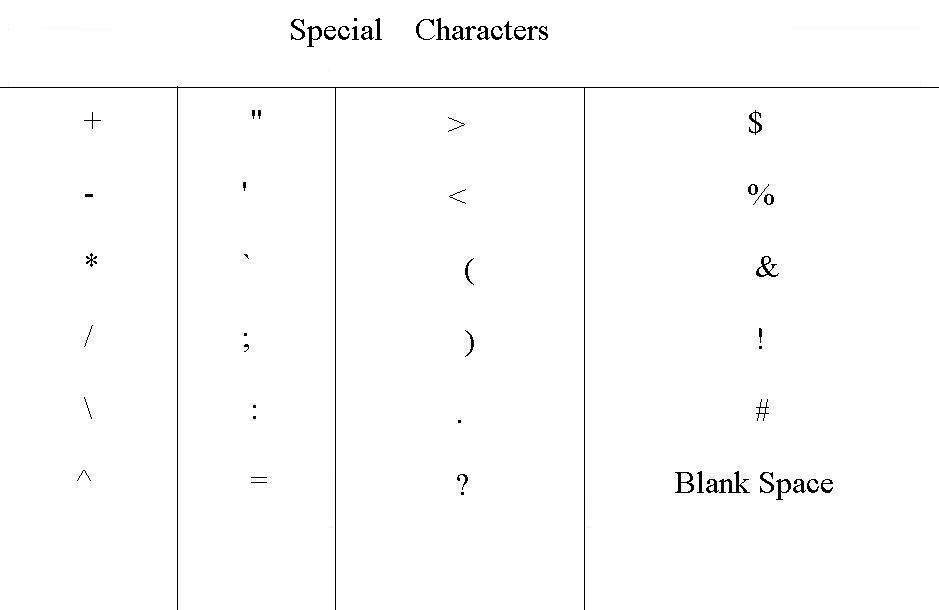
A set of characters that are allowed to use in QBASIC is known as the QBASIC Character Set. The QBASIC Character Set consists of alphabets (both small and capital), numbers (0 to 9) and special characters. These special characters have their own meaning and function. The table below shows the special characters used in QBASIC.

QBASIC keywords and variables are formed by using the characters defined in the QBASIC Character Set.
2. KEYWORD
Keywords are those words which have special meanings in QBASIC. Keywords are formed by using characters of QBASIC Characters Set. Keywords are statements, commands, functions (built in functions) and names of operators. The keywords are also called Reserved Words. Some reserved words are CLS, REM, INPUT, LET, PRINT, FOR, DO, SELECT, MID$, ASC, SQR, LEN, LEFT$, TIME$ and INT.
3. CONSTANTS
Constants are the data or the values in a program that cannot be changed during the program execution. The data may be a letter, words, numbers, or special characters. A constant can be stored in a variable when it is required to use in more than one statement or expression. In QBASIC, these data/constants are grouped into two main categories. They are:
a. Sting Constant
b. Numeric Constant
a. String Constant:
Sting Constant is a letter, words, numbers, combination of letters with numbers or special characters enclosed in double quotes. Mathematical operations cannot be performed on String Constants.
“B”, “APPLE”, “SYMBOL NO:10205”, “!!! Welcome to QBASIC World !!!”, etc. are some examples of Sting Constants.
b. Numeric Constant:
Numeric Constant refers to a number. A number with or without decimal point is a numeric constant. Thousand separators are not allowed to use in numeric constant. Numeric data should not be enclosed in double quotes. Mathematical operations and logical operations can be performed on the numeric constants. 101, 105.50, 720, 45603, etc. are some examples of numeric constants.
Numeric Constants may be integer, long integer, single precision or double precision.
Integer: Integer is whole number between -32768 to 32767.
Long Integer: Long Integer is a large range of whole number.
Single Precision: Single Precision is seven digit or less than seven digit positive or negative number that contains decimal point. Single Precision can be in the exponential form using E or with a trailing exclamation point. (!). 564, 78.65, 1.2 E-06 and 12345.678! are some examples of Single Precision Constants.
Double Precision: Double Precision is 17 digit or less than 17 digit positive or negative numbers that contains decimal point. Double Precision can be in the exponential form using D or with trailing hash sing (#). 9999.99D-12, 2345.786# and 3456.78 are some examples of Double Precision Constants.
4. VARIABLE
A program is written to perform certain tasks. A program needs data to produce information. A program can use data only when data are stored in the computer memory (RAM). In a computer memory, there may be many data. So, you need to tell the computer to use only those data which you want to use in a program. This is possible if you assign a name to the place where you have stored a data. In QBASIC, you can perform this task by using a variable. A variable is a place in the computer memory which has a name and stores data temporarily. Simply, you can say, a variable is an entity that stores data needed to be used in a program. Each program defines different number of variables. A value of a variable can be change during the execution of the program.
There are mainly two types of variables. They are:
i. String Variable
ii. Numeric Variable
A string variable stores sting data. Its types declaration sign is dollar ($). A numeric variable stores numeric data. A numeric variable can be Integer, Long Integer, Single Precision or Double Precision variables.
An Integer variable can store only an integer number. Its type declaration sign is percentage (%).
A Long integer variable can store a large range of whole number. Its type declaration sign is ampersand (&0).
A Single Precision variable can store a whole number as well as number with decimal. Its type declaration sign is exclamation sign (!). You can also use it without declaration sign. It is the default numeric variable.
A Double Precision variable also stores a whole number as well as number with decimal point. Its type declaration sign is hash (#).
Rules for naming a variable
a. Variable names can have maximum of 40 characters.
b. Variable names can have alphabets, numbers and decimal point.
c. A Variable name must begin with a letter.
d. A Variable name cannot begin with fn or FN alphabets. For example, fnames$, fnumetc.
e. Variable names cannot be reserved words.
f. Variable names may be ended with type declaration characters like $, %, &, !, and #.
Naam$, Address$, Bookname$, GameName$, etc., are examples of Sting Varibales.
Salary!, Age%, Mark, Number1, Number2, FirstNum, RollNumber, etc., are examples of Numeric Variables.
5. OPERATOR
Operators are symbols that indicate the type of operation QBASIC has to perform on the data or on the values of variables.
There are four types of operators in QBASIC. They are Arithmetic Operators, Relational Operators, Logical Operators and Sting Operator.
a. Arithmetic Operators
Arithmetic Operators are used to perform mathematical calculations like addition, subtraction, division, multiplication and exponential. The following table shows arithmetic operators used in QBASIC.
Operation ------------ Operator ---------------- Example ------------------ Result
i. Addition ----------------- + ----------------------- 5+8 -------------------------- 13
ii. Subtraction ----------- - ---------------------- 8-6 --------------------------- 2
iii. Multiplication -------- * ---------------------- 5*4 --------------------------- 20
iv. Division ---------------- / ------------------------ 8/2 -------------------------- 4
v. Integer Division -------- \ ----------------------- 9\2 --------------------------- 4
vi. Exponential ----------- ^ ----------------------- 4^3 ------------------------- 64
vii. Modular Division --- Mod --------------------- 7 mod 3 ------------------------ 1
b. Relational Operators
Relational Operators are use to perform comparisons on two values of same type. A comparison of sting data with numeric data cannot be done. The comparison of sting data is done on the basis of ASCII value. The result of comparison is either true (non zero) or false (zero).
The following table shows the relational operators used in QBASIC.
Operator ------------- Relation ------------------------------- Example
i. = --------------------- Equal to -------------------------------- A = B, A$ = B$
ii. > -------------------- Greater than --------------------------- A > B, “CAT”>”RAT”
iii. < ------------------- Less than ------------------------------- A < B, "cat" < "cat"
iv. > = ---------------- Greater than or equal to ---------------- A > = B, X$ > = Y$
v. < = ----------------- Less than or equal to ------------------- A < = B, X$ < = Y$
vi. < > ---------------- Not equal ------------------------------ A$ < > B$, X <> Y.
c. Logical Operators
Logical Operators combine two or more relational expressions to evaluate a single value as True (Non Zero) or False (Zero). The result of evaluation is used to make decisions about the program flow. The commonly used logical operators in QBASIC are AND, OR and NOT.
i. AND Operator:
AND operator returns ‘True’ when all the results returned from individual relational expressions are ‘True’ otherwise it returns ‘False’.
The AND Truth Table is given shown below.
Condition1 (P) ------------- Condition2 (Q) -------------- Result (P AND Q)
F ------------------------------- T ----------------------------------- F
T ------------------------------- F ----------------------------------- F
F ------------------------------- F ----------------------------------- F
T ------------------------------- T ----------------------------------- T
Note: A ‘T’ indicates a true value and a ‘F’ indicates a false value.
ii. OR Operator:
OR Operator return ‘True’ if any one of the relational expressions returns ‘True’. If all the relational expressions returns ‘False’ then only the combined result returned by OR operator will be ‘False’.
The OR Truth table is as given below.
Condition 1 (A) ------------------ Condition2 (Q) --------------- Result (A or B)
F ------------------------------------------- T ---------------------------------- T
T ------------------------------------------- F ---------------------------------- T
T ------------------------------------------- T ---------------------------------- T
F -------------------------------------------- F ---------------------------------- F
iii. NOT Operator:
NOT Operator operates on one operand and returns ‘True’ if the logical operation returns ‘False’. The NOT truth table is as given below.
Condition1 (A) --------------------------- Result (NOT A)
F ----------------------------------------------- T
T ----------------------------------------------- F
d. String Operator
String Operator joins two or more than two sting data. The plus sign (+) is used as the String operator. The act of combining two stings is called concatenation. The following table shows the use of Sting Operator.
String Data (A$) -------------------- Sting data (B$) ----------------- A$ + B$
“Ram” ---------------------------------- “Thapa” ------------------------ Ram Thapa
“50” ------------------------------------- “45” ----------------------------- 5045
6. EXPRESSIONS
An expression is the combination of operators, constants and variables that is evaluated to get a result. The result of the expression is either string data, numeric data or logical value (true or false) and can be stored in a variable. For example, the following are expressions in QBASIC.
(A + B) > C
A > = B + C
u* t + ½*a*t^2
An arithmetic expression may contain more than one operator. While evaluating such expressions, a hierarchy is followed. The hierarchy in arithmetic operations is listed as given below:
a. Exponentiation (^)
b. Negation (-)
c. Multiplication and division
d. Integer division
e. Modular division
f. Addition and Subtraction
The hierarchy in relational operations are =, >, <, <>, < =, and > = respectively. The hierarchy in logical operations are NOT, AND and OR.
NOTE:
When parenthesis is used, it changes the order of hierarchy. The operators inside the parenthesis are evaluated first. So, you can say QBASIC expression follows rule of PEDMAS where P, E, D, M, A and S stand for parenthesis, Exponentiation, Division, Multiplication, Addition, and Subtraction respectively.
Algebraic expression cannot be used directly in programming. It must be converted into QBASIC expression.
Algebraic Expression --------------------------------- BASIC Expression
A = L × B ------------------------------------------------- A = L * B
P = 2(L + B) ---------------------------------------------- P = 2*(L + B)
I = (P × T × R)/100 --------------------------------------- I = (P * T * R)/100
V = 4/3 pi R^3 ------------------------------------------- V = 4/3 * PI * R^3
Every programming language consists of some basic elements which are required to make a program. The element required to construct a QBASIC program consists of a set of characters, keywords, constants, variables, operators and expressions.
1. CHARACTER SET
A set of characters that are allowed to use in QBASIC is known as the QBASIC Character Set. The QBASIC Character Set consists of alphabets (both small and capital), numbers (0 to 9) and special characters. These special characters have their own meaning and function. The table below shows the special characters used in QBASIC.
QBASIC keywords and variables are formed by using the characters defined in the QBASIC Character Set.
2. KEYWORD
Keywords are those words which have special meanings in QBASIC. Keywords are formed by using characters of QBASIC Characters Set. Keywords are statements, commands, functions (built in functions) and names of operators. The keywords are also called Reserved Words. Some reserved words are CLS, REM, INPUT, LET, PRINT, FOR, DO, SELECT, MID$, ASC, SQR, LEN, LEFT$, TIME$ and INT.
3. CONSTANTS
Constants are the data or the values in a program that cannot be changed during the program execution. The data may be a letter, words, numbers, or special characters. A constant can be stored in a variable when it is required to use in more than one statement or expression. In QBASIC, these data/constants are grouped into two main categories. They are:
a. Sting Constant
b. Numeric Constant
a. String Constant:
Sting Constant is a letter, words, numbers, combination of letters with numbers or special characters enclosed in double quotes. Mathematical operations cannot be performed on String Constants.
“B”, “APPLE”, “SYMBOL NO:10205”, “!!! Welcome to QBASIC World !!!”, etc. are some examples of Sting Constants.
b. Numeric Constant:
Numeric Constant refers to a number. A number with or without decimal point is a numeric constant. Thousand separators are not allowed to use in numeric constant. Numeric data should not be enclosed in double quotes. Mathematical operations and logical operations can be performed on the numeric constants. 101, 105.50, 720, 45603, etc. are some examples of numeric constants.
Numeric Constants may be integer, long integer, single precision or double precision.
Integer: Integer is whole number between -32768 to 32767.
Long Integer: Long Integer is a large range of whole number.
Single Precision: Single Precision is seven digit or less than seven digit positive or negative number that contains decimal point. Single Precision can be in the exponential form using E or with a trailing exclamation point. (!). 564, 78.65, 1.2 E-06 and 12345.678! are some examples of Single Precision Constants.
Double Precision: Double Precision is 17 digit or less than 17 digit positive or negative numbers that contains decimal point. Double Precision can be in the exponential form using D or with trailing hash sing (#). 9999.99D-12, 2345.786# and 3456.78 are some examples of Double Precision Constants.
4. VARIABLE
A program is written to perform certain tasks. A program needs data to produce information. A program can use data only when data are stored in the computer memory (RAM). In a computer memory, there may be many data. So, you need to tell the computer to use only those data which you want to use in a program. This is possible if you assign a name to the place where you have stored a data. In QBASIC, you can perform this task by using a variable. A variable is a place in the computer memory which has a name and stores data temporarily. Simply, you can say, a variable is an entity that stores data needed to be used in a program. Each program defines different number of variables. A value of a variable can be change during the execution of the program.
There are mainly two types of variables. They are:
i. String Variable
ii. Numeric Variable
A string variable stores sting data. Its types declaration sign is dollar ($). A numeric variable stores numeric data. A numeric variable can be Integer, Long Integer, Single Precision or Double Precision variables.
An Integer variable can store only an integer number. Its type declaration sign is percentage (%).
A Long integer variable can store a large range of whole number. Its type declaration sign is ampersand (&0).
A Single Precision variable can store a whole number as well as number with decimal. Its type declaration sign is exclamation sign (!). You can also use it without declaration sign. It is the default numeric variable.
A Double Precision variable also stores a whole number as well as number with decimal point. Its type declaration sign is hash (#).
Rules for naming a variable
a. Variable names can have maximum of 40 characters.
b. Variable names can have alphabets, numbers and decimal point.
c. A Variable name must begin with a letter.
d. A Variable name cannot begin with fn or FN alphabets. For example, fnames$, fnumetc.
e. Variable names cannot be reserved words.
f. Variable names may be ended with type declaration characters like $, %, &, !, and #.
Naam$, Address$, Bookname$, GameName$, etc., are examples of Sting Varibales.
Salary!, Age%, Mark, Number1, Number2, FirstNum, RollNumber, etc., are examples of Numeric Variables.
5. OPERATOR
Operators are symbols that indicate the type of operation QBASIC has to perform on the data or on the values of variables.
There are four types of operators in QBASIC. They are Arithmetic Operators, Relational Operators, Logical Operators and Sting Operator.
a. Arithmetic Operators
Arithmetic Operators are used to perform mathematical calculations like addition, subtraction, division, multiplication and exponential. The following table shows arithmetic operators used in QBASIC.
Operation ------------ Operator ---------------- Example ------------------ Result
i. Addition ----------------- + ----------------------- 5+8 -------------------------- 13
ii. Subtraction ----------- - ---------------------- 8-6 --------------------------- 2
iii. Multiplication -------- * ---------------------- 5*4 --------------------------- 20
iv. Division ---------------- / ------------------------ 8/2 -------------------------- 4
v. Integer Division -------- \ ----------------------- 9\2 --------------------------- 4
vi. Exponential ----------- ^ ----------------------- 4^3 ------------------------- 64
vii. Modular Division --- Mod --------------------- 7 mod 3 ------------------------ 1
b. Relational Operators
Relational Operators are use to perform comparisons on two values of same type. A comparison of sting data with numeric data cannot be done. The comparison of sting data is done on the basis of ASCII value. The result of comparison is either true (non zero) or false (zero).
The following table shows the relational operators used in QBASIC.
Operator ------------- Relation ------------------------------- Example
i. = --------------------- Equal to -------------------------------- A = B, A$ = B$
ii. > -------------------- Greater than --------------------------- A > B, “CAT”>”RAT”
iii. < ------------------- Less than ------------------------------- A < B, "cat" < "cat"
iv. > = ---------------- Greater than or equal to ---------------- A > = B, X$ > = Y$
v. < = ----------------- Less than or equal to ------------------- A < = B, X$ < = Y$
vi. < > ---------------- Not equal ------------------------------ A$ < > B$, X <> Y.
c. Logical Operators
Logical Operators combine two or more relational expressions to evaluate a single value as True (Non Zero) or False (Zero). The result of evaluation is used to make decisions about the program flow. The commonly used logical operators in QBASIC are AND, OR and NOT.
i. AND Operator:
AND operator returns ‘True’ when all the results returned from individual relational expressions are ‘True’ otherwise it returns ‘False’.
The AND Truth Table is given shown below.
Condition1 (P) ------------- Condition2 (Q) -------------- Result (P AND Q)
F ------------------------------- T ----------------------------------- F
T ------------------------------- F ----------------------------------- F
F ------------------------------- F ----------------------------------- F
T ------------------------------- T ----------------------------------- T
Note: A ‘T’ indicates a true value and a ‘F’ indicates a false value.
ii. OR Operator:
OR Operator return ‘True’ if any one of the relational expressions returns ‘True’. If all the relational expressions returns ‘False’ then only the combined result returned by OR operator will be ‘False’.
The OR Truth table is as given below.
Condition 1 (A) ------------------ Condition2 (Q) --------------- Result (A or B)
F ------------------------------------------- T ---------------------------------- T
T ------------------------------------------- F ---------------------------------- T
T ------------------------------------------- T ---------------------------------- T
F -------------------------------------------- F ---------------------------------- F
iii. NOT Operator:
NOT Operator operates on one operand and returns ‘True’ if the logical operation returns ‘False’. The NOT truth table is as given below.
Condition1 (A) --------------------------- Result (NOT A)
F ----------------------------------------------- T
T ----------------------------------------------- F
d. String Operator
String Operator joins two or more than two sting data. The plus sign (+) is used as the String operator. The act of combining two stings is called concatenation. The following table shows the use of Sting Operator.
String Data (A$) -------------------- Sting data (B$) ----------------- A$ + B$
“Ram” ---------------------------------- “Thapa” ------------------------ Ram Thapa
“50” ------------------------------------- “45” ----------------------------- 5045
6. EXPRESSIONS
An expression is the combination of operators, constants and variables that is evaluated to get a result. The result of the expression is either string data, numeric data or logical value (true or false) and can be stored in a variable. For example, the following are expressions in QBASIC.
(A + B) > C
A > = B + C
u* t + ½*a*t^2
An arithmetic expression may contain more than one operator. While evaluating such expressions, a hierarchy is followed. The hierarchy in arithmetic operations is listed as given below:
a. Exponentiation (^)
b. Negation (-)
c. Multiplication and division
d. Integer division
e. Modular division
f. Addition and Subtraction
The hierarchy in relational operations are =, >, <, <>, < =, and > = respectively. The hierarchy in logical operations are NOT, AND and OR.
NOTE:
When parenthesis is used, it changes the order of hierarchy. The operators inside the parenthesis are evaluated first. So, you can say QBASIC expression follows rule of PEDMAS where P, E, D, M, A and S stand for parenthesis, Exponentiation, Division, Multiplication, Addition, and Subtraction respectively.
Algebraic expression cannot be used directly in programming. It must be converted into QBASIC expression.
Algebraic Expression --------------------------------- BASIC Expression
A = L × B ------------------------------------------------- A = L * B
P = 2(L + B) ---------------------------------------------- P = 2*(L + B)
I = (P × T × R)/100 --------------------------------------- I = (P * T * R)/100
V = 4/3 pi R^3 ------------------------------------------- V = 4/3 * PI * R^3


![Image[46]](https://blogger.googleusercontent.com/img/b/R29vZ2xl/AVvXsEiw0sViR7fvwZvHw4Unxaz7JcOHA4oq1dNBywZ8bh9hTTY3Wwy91DoV4vtc1VdbbCN3iUkKf5eTx52M-Yu8WuaL3UqLFssgTSfxb_1j5heFHq9EXedTBa6pk_BVCMQvMss0vWZJReWcxOM/s1600-h/Image%5B46%5D%5B5%5D.png "Image[46]")


